 Step Metronome
Add a Count In
Add a 1–4 bar Count In before playback.
Tips: Choose the Count In sound and volume in Settings.
Step Metronome / Quick Start
Learn the basics
Press Play to hear the metronome. Tap TAP a few times to set the BPM. You can also enter the BPM directly.
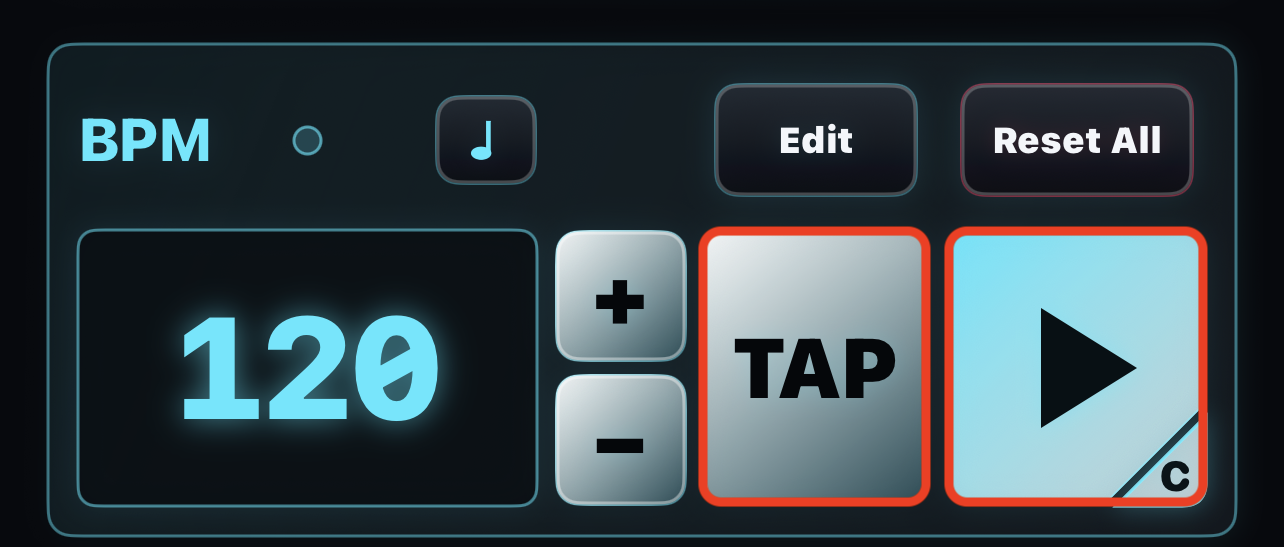
Turn Step buttons on or off, and move the Swing bar to explore the sound.
You can also press and hold a Step button, then swipe up or down to change Velocity (strength)
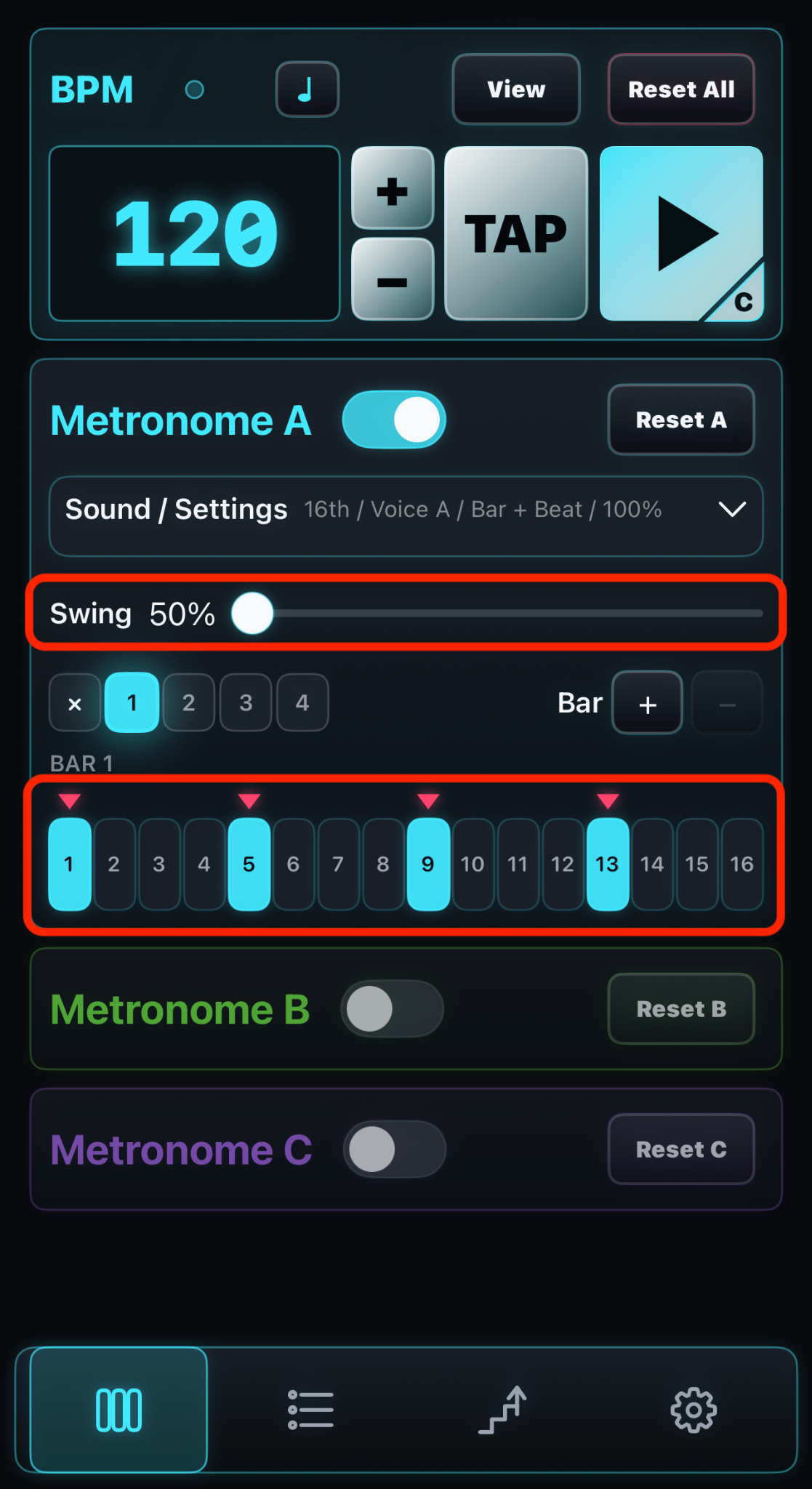
Tap Sound / Settings to open the detailed settings.
For example, tap Voice to change the sound.
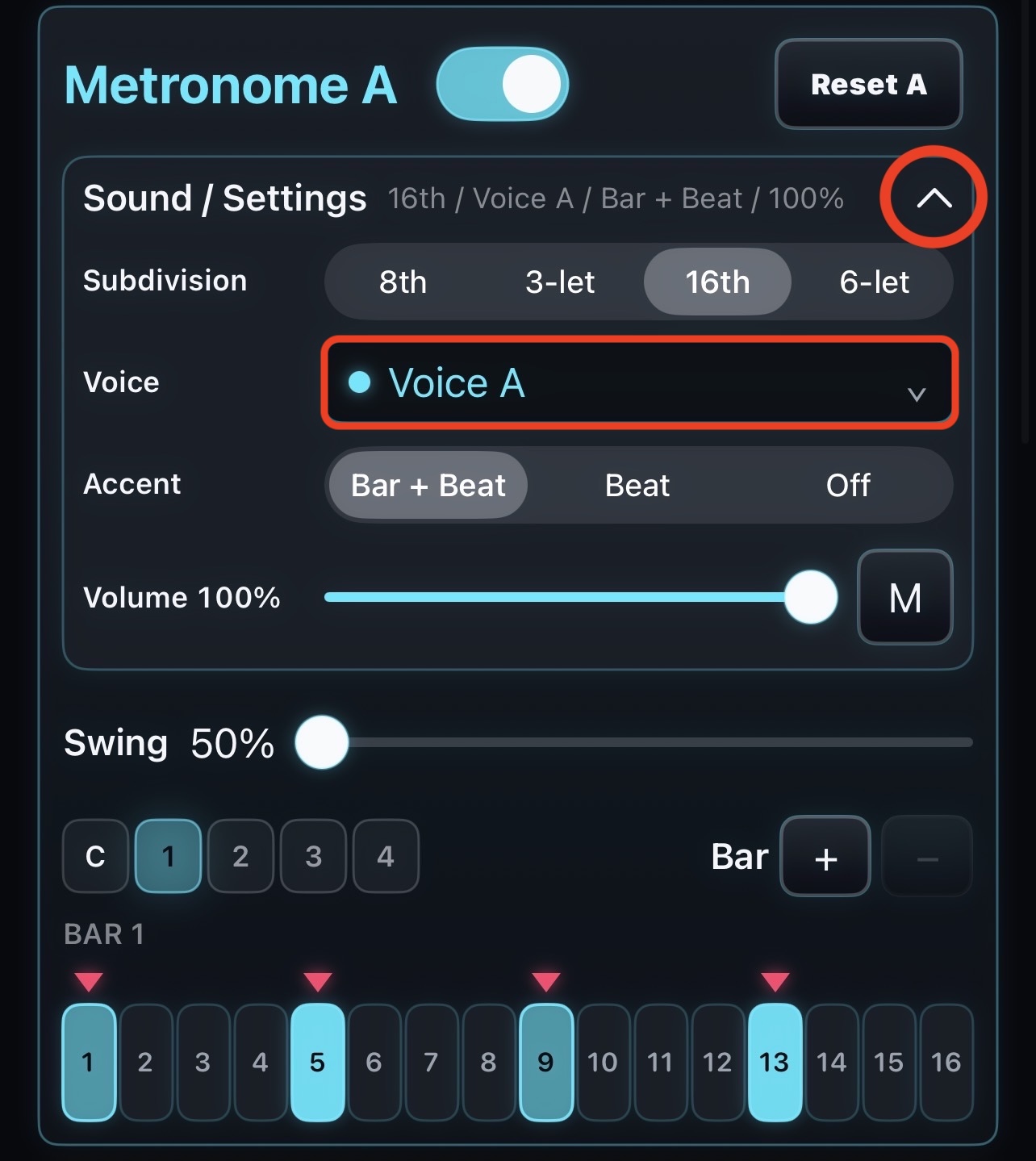
Choose the sound, subdivision, accent, and volume.
Change accent positions by double-tapping the ▼ (downbeat) markers.
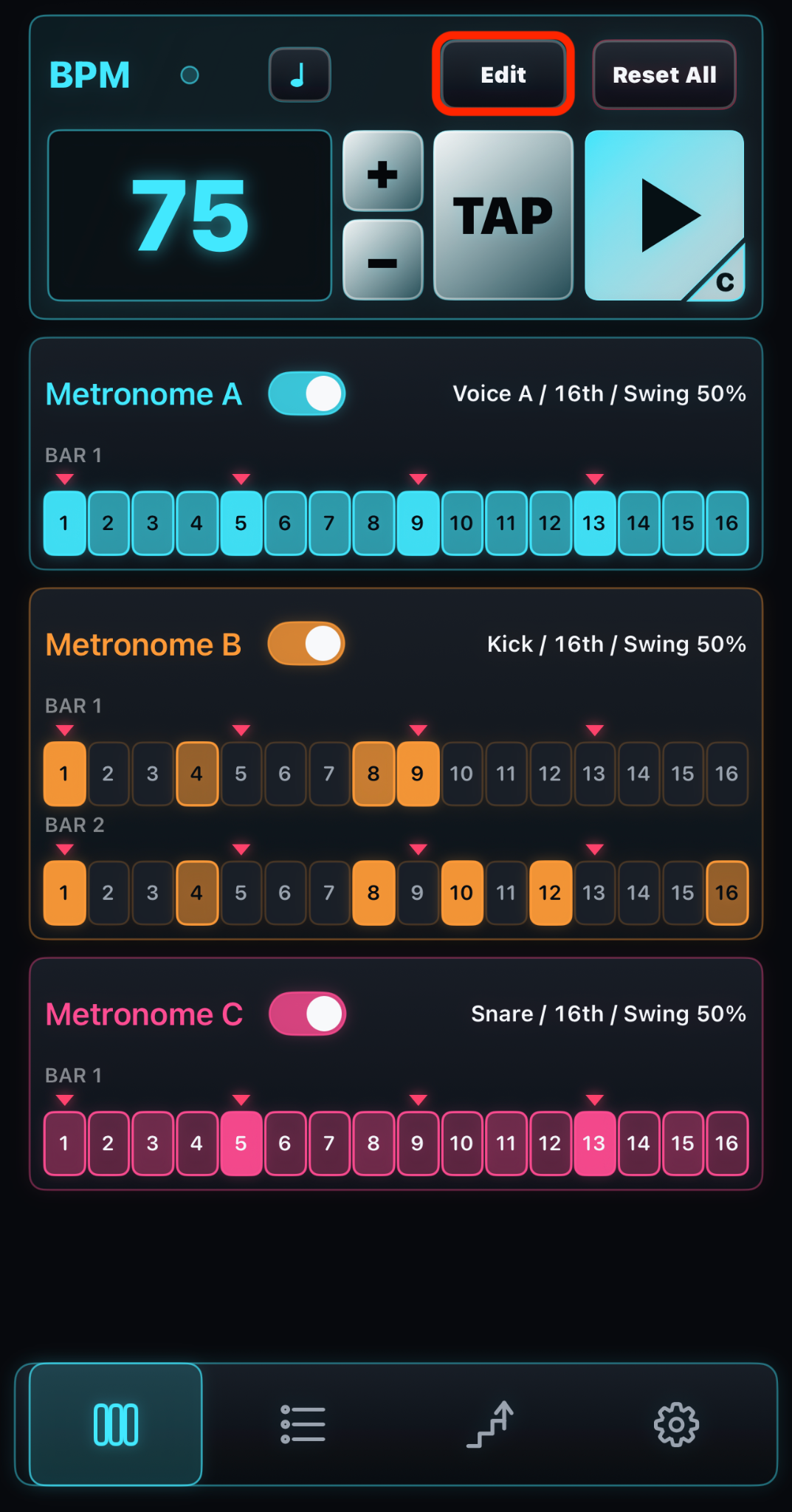
You can play three metronomes—Metronome A/B/C—simultaneously.
Switch between View/Edit to see all of Metronome A/B/C clearly.
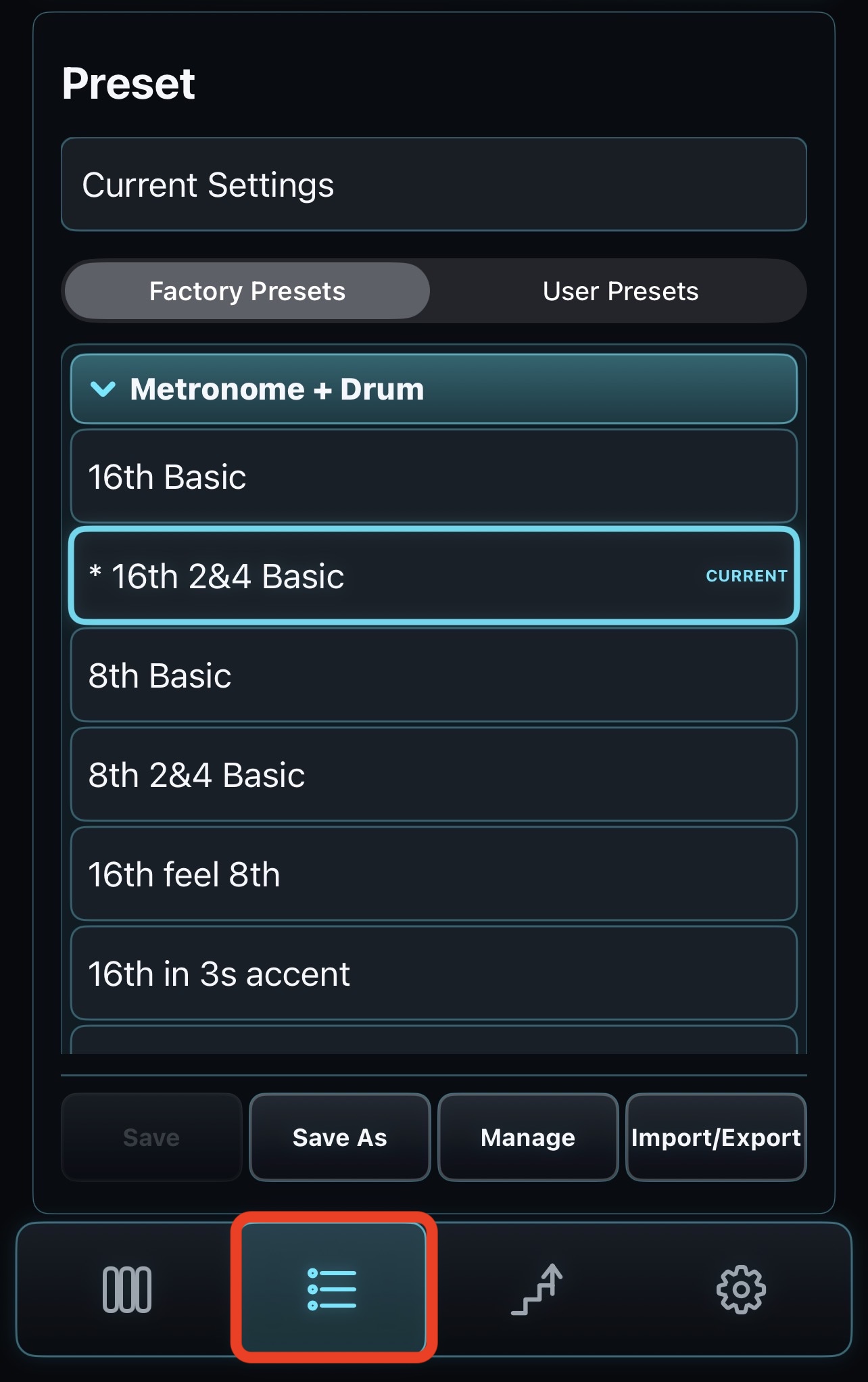
Select Preset Mode in the Bottom Bar, then choose a rhythm pattern.
You can save and recall rhythm patterns.
When you create a pattern you like, save it with Save As.
Add a 1–4 bar Count In before playback.
Tips: Choose the Count In sound and volume in Settings.
Use the ×1234 buttons to turn groups of Steps on or off. Press and hold to adjust Velocity.
Tips: Press and hold × to set all Velocity values to 10
Press and hold the bar + button to copy the pattern in bar 1.
Turn on Keep Current BPM On Preset Load in Settings. Presets will load at the current BPM.
Tips: The same BPM cannot be maintained if the Beat Unit differs