Save, rename, and reorder
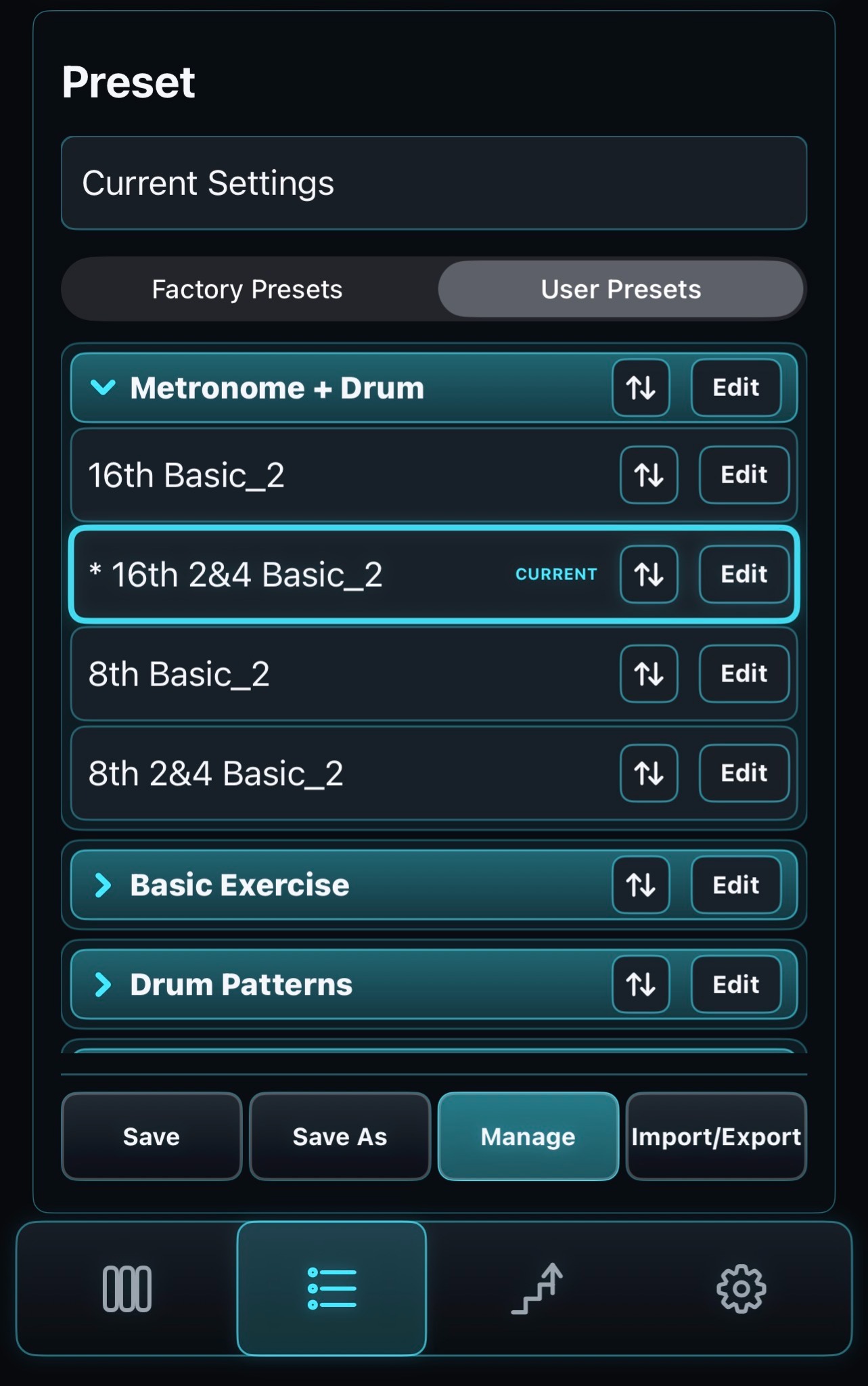
- 1 Current Settings
- Automatically saves performance settings edited without selecting a preset. Even after loading another preset, select Current Settings to recall the last retained settings. They are kept when you restart the app. To keep them as a user preset, recall Current Settings, then save with Save As.Note: Changes made while a preset is selected (marked with *) are not saved to Current Settings. Use Save or Save As to keep those changes.
- 2 Factory Presets
- Show the built-in presets.
- 3 User Presets
- Show the presets you have saved.
- 4 Category
- Tap a category name to expand or collapse its list.
- 5 CURRENT
- Indicates the preset currently loaded.
An asterisk (*) appears at the start if it has been changed from its saved state. - 6 ↕
- Change the order of presets or categories.
Drag up or down to move an item to the position you want. - 7 Edit
- Rename or delete presets and categories, and more.
- 8 Save
- Overwrite the selected user preset with the current settings.
- 9 Save As
- Name the current settings and save them as a new user preset. A number is added automatically to avoid duplicate names. You can change the name freely.
- 10 Manage
- Turn management mode for renaming, deleting, and reordering user presets on or off. Turning it on automatically switches to the User Presets list.Note: Management mode is for User Presets only. Factory Presets cannot be edited.
- 11 Import / Export
- Open the menu for importing/exporting presets and exporting WAV/MIDI files.
Save features marked PRO require PRO.
 Step Metronome